
Appearance
Member Verification
Member Verification gives new members a Verify button and grants a configured Discord role after they complete the selected check.
Available on every plan
Welcome DMs, channel panels, and Discord-button verification are available on Free. Turnstile and Steam Link verification require a paid plan.
Discord-button verification is not identity proof
The standard button confirms that the Discord account interacted with HAF Bot. It does not prove that the account belongs to a human or to a particular game account.
Delivery Modes
- Welcome DM — HAF sends each new member a direct message containing the Verify button.
- Channel panel — HAF maintains one verification panel in a selected Discord channel.
Use a channel panel when members may have server DMs disabled. A failed DM does not automatically create a channel message for that member.
Verified members who leave and rejoin automatically receive the verified role again.
Set Up Verification
Create or choose a Verified Role and move HAF Bot's Discord role above it. For channel delivery, members without the role must be able to view and interact in the welcome channel.
Open Admin Dashboard → Member Verification.
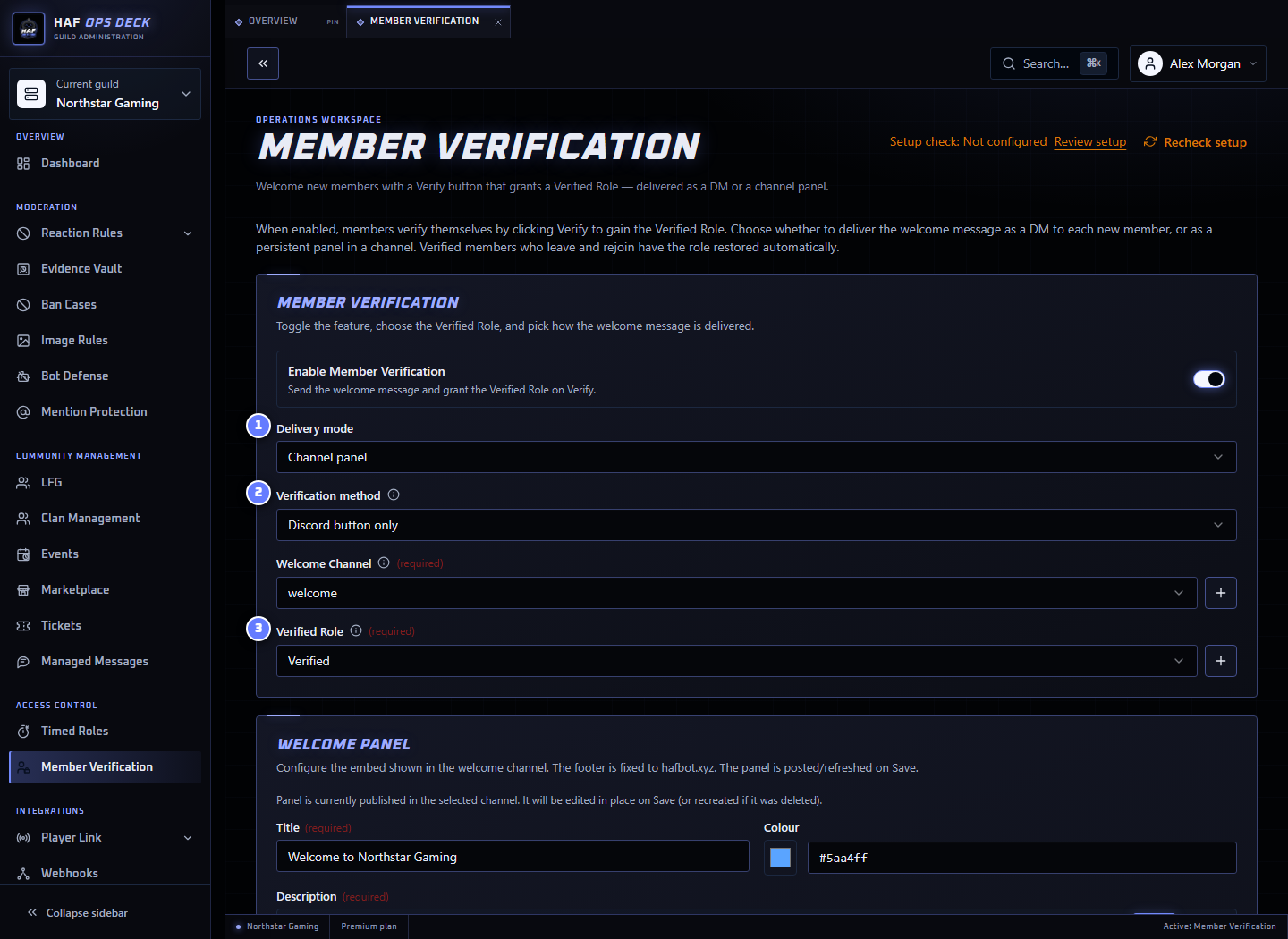
- Delivery mode — Welcome DM or persistent channel panel.
- Verification method — Discord button or an available stronger check.
- Verified Role — the role granted after successful verification.
To configure the feature:
- Enable Member Verification.
- Choose the Verified Role.
- Choose Welcome DM or channel-panel delivery.
- Choose the verification method.
- Customize the welcome title, description, colour, images, rules link, and button emoji.
- For channel delivery, choose the Welcome Channel.
- Save the configuration.
Saving a channel-delivery configuration posts or refreshes the Welcome Panel automatically. Use Publish or repair panel to replay the last saved configuration without making an edit. It updates the existing message in place, or creates a replacement if the old message was deleted.
Verification Methods
Discord button
Available on every plan. Selecting Verify grants the configured role.
Turnstile challenge
Paid plans only. The member completes a Cloudflare Turnstile challenge before receiving the role. This adds an automated-account check but does not establish a real-world identity.
The option appears only when Turnstile has been configured for the HAF service.
Steam Link required
Paid plans only. The member must have a Steam link when completing verification.
When no Steam link exists, HAF provides a Steam sign-in URL and asks the member to select Verify again after linking.
Member Verification stores its own completed-verification state. Unlinking Steam later does not remove the Verified Role or revoke that saved state. A previously verified member who rejoins receives the Verified Role again even when their Steam link was later removed.
Use a separate moderation or access-control process when continued Steam linking must remain a requirement after initial verification.
The option appears only when Steam linking is available. See Player Link for how Steam identity linking works.
Existing Verification State
When a member already holds the Verified Role, selecting Verify reports that they are already verified. If HAF has no saved verification state for that role holder, it records one at that point.
Removing the Discord role manually does not clear the saved state. The next successful verification attempt or server rejoin can restore the role.
The current dashboard does not expose a member verification-state reset or revocation workflow.
Test the Flow
Use a new non-admin account that does not already have the Verified Role.
Confirm that:
- the welcome DM arrives or the panel is visible;
- the member can complete the selected method;
- the Verified Role is granted; and
- the role is restored after leaving and rejoining.
For Welcome DM delivery, the dashboard also provides a test action that sends the saved welcome message to a Discord user ID.
If the button works but the role is not granted, check Manage Roles permission and move HAF Bot's role above the Verified Role.
Setup Check
After saving, use Setup check to inspect the saved delivery channel, Verified Role, and required permissions. It does not send a DM, complete verification, or grant a role.
The welcome channel and Verified Role can be created or reused from the feature page. Creating them does not enable Member Verification; save the configuration when the setup is ready.