
Appearance
Reaction Rules
Reaction Rules control unwanted emoji use without deleting the underlying Discord message.
It has two independent parts:
- Blocklist — removes selected emoji reactions.
- Reaction Limits — removes reactions above message or member limits and can apply a breach role.
Quick Setup
Open Admin Dashboard → Reaction Rules and confirm Current Guild is the server you intend to change.
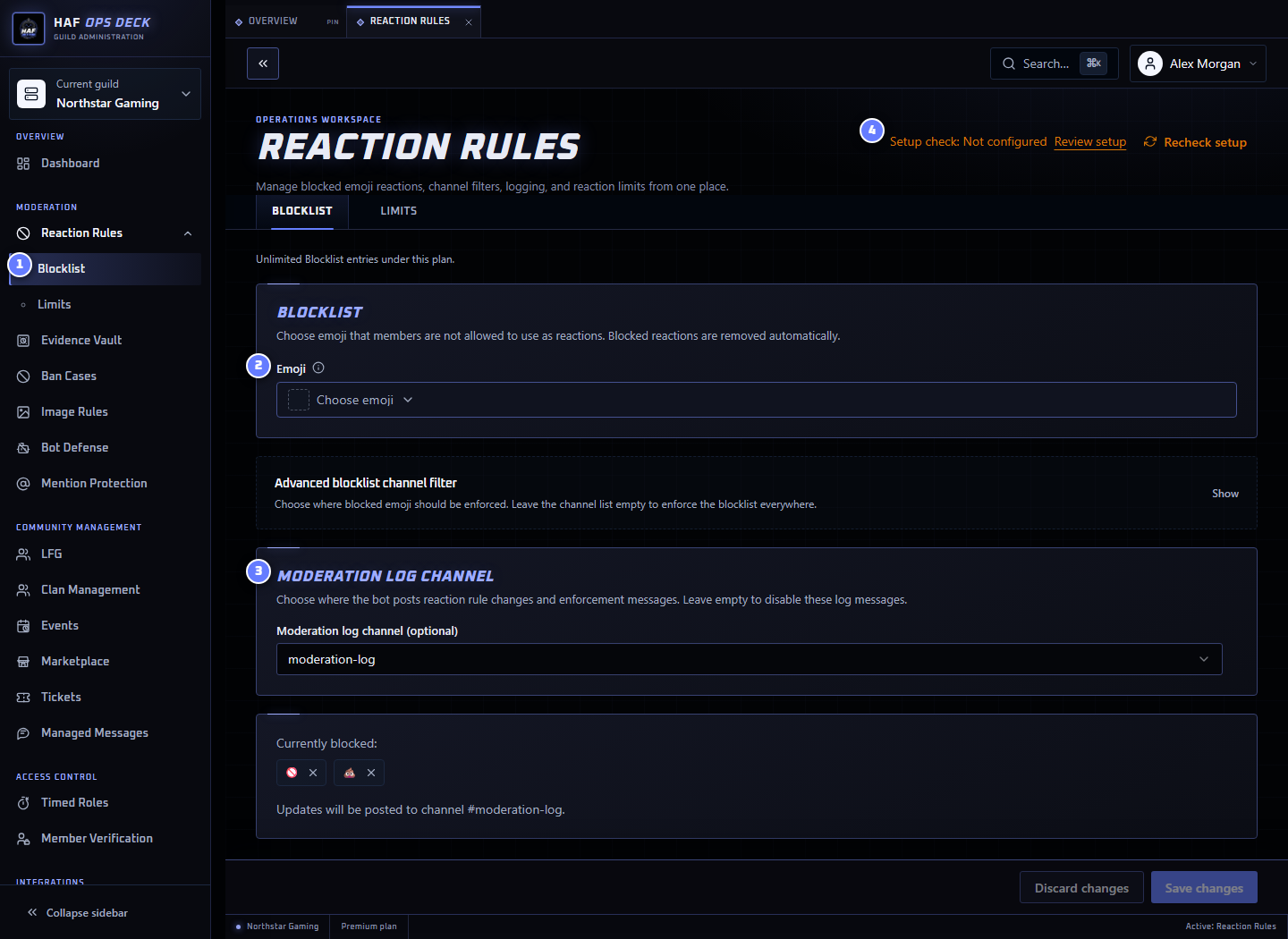
- Blocklist — add emoji HAF should remove.
- Emoji picker — choose a Unicode or server emoji.
- Moderation log channel — optional destination for enforcement and role-assignment events.
- Setup check — tests the saved channels and permissions.
To finish setup:
- Add at least one blocked emoji, enable Reaction Limits, or configure both.
- Leave the channel list empty to apply the rule everywhere, or choose include/exclude filtering.
- Choose an optional moderation log channel.
- Save the configuration.
- Test from a non-admin account in a suitable channel.
Channel Filtering
Both features can use channel scope:
- All channels — applies everywhere HAF can manage reactions.
- Include mode — applies only in the selected channels.
- Exclude mode — applies everywhere except the selected channels.
Threads and Forum posts follow the behaviour of their parent channel where supported by the saved filter.
What Members See
When a rule is breached, HAF removes the newly added reaction. It does not delete the message.
Reaction Limits can also DM the member or assign a role after repeated personal-limit breaches. See Reaction Limits for exact counter behaviour and a worked example.
Availability
- Blocklist is available on every plan. Free supports up to 10 blocked emoji; paid plans have no HAF plan limit.
- Reaction Limits are available on every plan.
Troubleshooting
If a reaction remains:
- Confirm the rule is enabled and saved.
- Check the channel include/exclude setting.
- Confirm HAF Bot can view the channel and use Manage Messages.
- Run Setup check or open Troubleshooting.
Setup checks do not add a reaction or delete a message. Always confirm enforcement with a harmless test reaction.