
Appearance
Tickets
Tickets create private Discord channels for appeals, reports, questions, and staff support workflows.
Available on every plan
Free includes one panel with one Ticket type and intake questions. Paid plans remove those quantity limits and add advanced automation and controls.
Set Up Your First Panel
Open Admin Dashboard → Tickets. The setup flow can create or reuse the panel channel, private Ticket category, transcript channel, and support role.
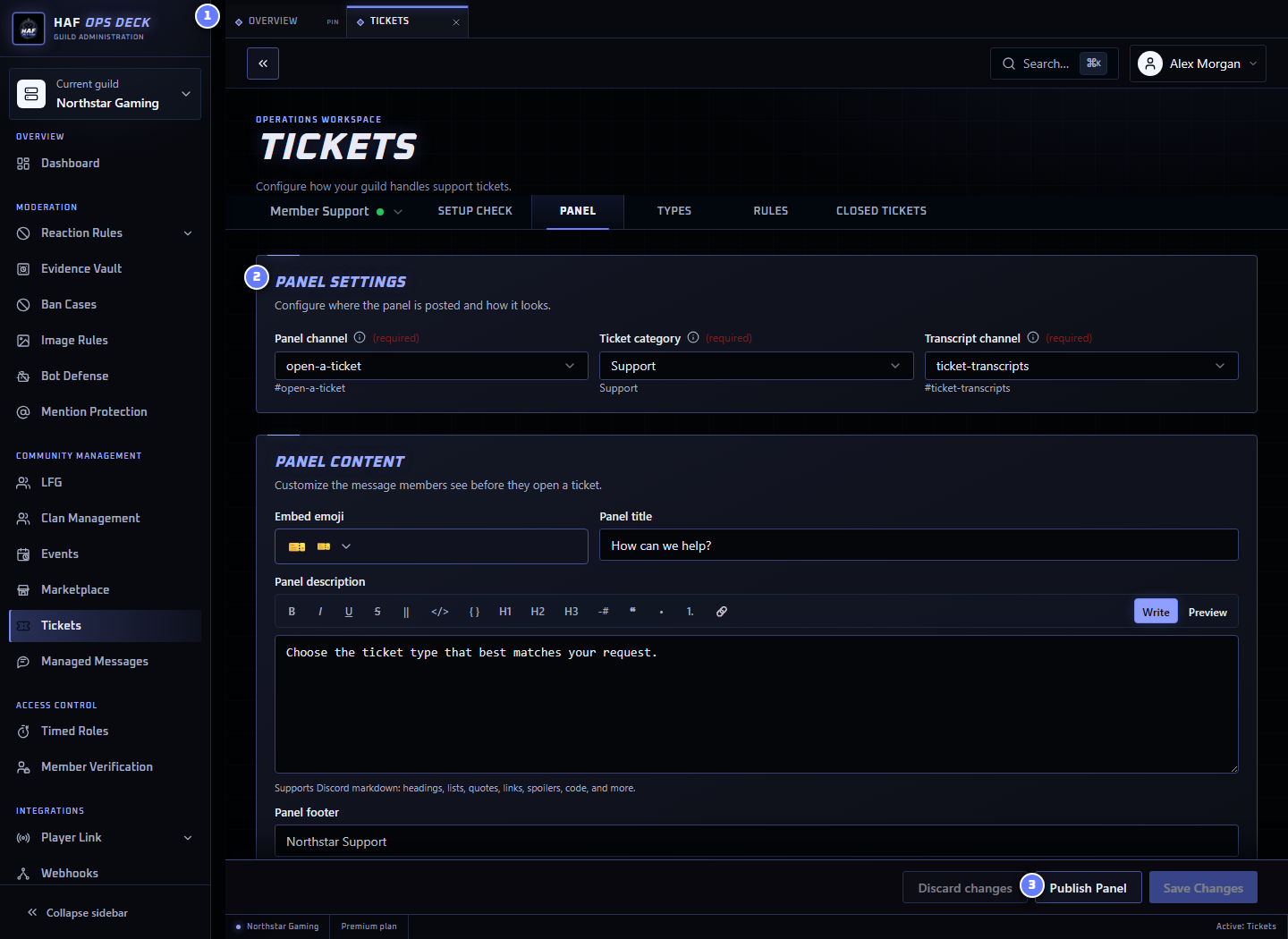
- Ticket settings tabs — Setup Check, Panel, Types, Rules, and Closed Tickets.
- Panel Settings — member panel, private category, and transcript destination.
- Publish Panel — posts the saved panel or updates its existing message.
For a first working panel:
- On Panel, choose or create the panel channel, Ticket category, and transcript channel.
- Customize the member-facing title and description.
- On Types, add at least one Ticket type, such as
General support. - Choose the Discord support role for that type.
- Add intake questions only when staff need the answer before responding.
- On Rules, choose claiming and per-member creation behaviour.
- Select Save Changes, then Publish Panel.
- Resolve warnings or errors under Setup Check.
Saving stores the panel configuration. Publishing creates or updates the member-facing Discord message.
Member Flow
- A member selects a Ticket type from the published panel.
- HAF asks the configured intake questions.
- HAF creates a private channel visible to the member, the selected support role, and HAF Bot.
- Members and staff discuss the request in that channel.
- A member or staff member closes the Ticket, or requests closure for confirmation.
- HAF generates the transcript.
- After the transcript is saved successfully, HAF deletes the private staff thread and Ticket channel.
If transcript creation fails, HAF leaves the Ticket open so staff can retry. If later cleanup fails after the transcript was saved, HAF records the Ticket as closed and queues or exposes recovery work for the remaining Discord resources.
Test with a non-staff account. Confirm the new channel is private, the correct support role can see it, and closing it creates a transcript in the configured destination before the Ticket channel disappears.
Ticket Types
Each Ticket type can configure:
- label, internal ID, channel prefix, emoji, and button style;
- support role;
- intake questions, including optional SteamID64 validation;
- optional creator-role restrictions;
- auto-reply or conditional reply behaviour; and
- anonymous support.
Free includes one Ticket type. Creator-role restrictions, auto-replies, conditional replies, anonymous support, AI transcript summaries, and advanced creation-limit controls require a paid plan.
Creation Limits
A panel can limit how many open Tickets one member may have. Ticket types can also be excluded from that limit where appropriate.
When a member reaches the limit, HAF rejects the new Ticket and shows the configured rejection message. Closing an existing Ticket reduces their open count.
Staff Commands
| Command | Result |
|---|---|
/ticket close | Closes the current Ticket |
/ticket request-close | Asks the opener to confirm closure |
/ticket claim | Assigns responsibility to a staff member |
/ticket history | Shows a member's previous Tickets |
/ticket reply | Previews and sends a saved Message Template |
These commands run inside an active Ticket channel. See Discord Commands for parameters.
Anonymous Support
When anonymous support is enabled for a Ticket type, HAF creates a private staff thread linked to the Ticket.
Support staff send an anonymous reply by writing:
text
!send Your reply to the memberHAF posts the content into the member's Ticket channel as the bot rather than exposing the individual moderator's Discord identity. Supported attachments are copied with the reply.
Editing or deleting the original !send message updates or removes the matching bot message. Ordinary staff-thread messages without !send remain private to staff.
Anonymous support hides the replying moderator from the Ticket member. It does not hide staff activity from HAF's internal Ticket records or authorised staff.
Transcripts and Closed Tickets
Closing a Ticket produces:
- a text transcript uploaded to the configured transcript channel;
- an HTML transcript link when transcript storage is available;
- a summary embed; and
- an optional AI summary on paid plans when enabled.
Staff can find closed records and transcript links under Closed Tickets and in the configured transcript channel.
Closed Tickets cannot currently be reopened. The original Ticket channel is deleted after a successful close, so continued discussion requires a new Ticket.
The dashboard does not currently expose self-service transcript deletion or a retention setting. Transcript retention therefore needs a defined product policy, and staff should keep the transcript channel private.
Limits
| Tier | Panels | Ticket types per panel |
|---|---|---|
| Free | 1 | 1 |
| Premium | No plan limit | No plan limit |
| Premium Plus | No plan limit | No plan limit |
Free also includes Ticket claiming, support-role notifications, intake questions, and ordinary transcripts.
Setup Check
The page-header Setup check reads the last saved configuration. The Tickets Setup Check tab also contains feature-specific test actions and explains what each action changes.
Neither view includes unsaved edits. Save first. A passing check confirms resources and permissions, but a non-staff member test remains the final proof that privacy and transcripts work as expected.